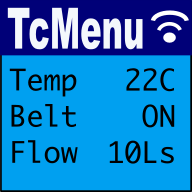
DfRobot input and display plugin make generating a menu for DfRobot shields very simple. There's no configuration needed in order to produce a menu. This plugin auto configures the display to use LiquidCrystalIO library and sets up switches to use the micro-switches connected to analog input A0.
Setting up for your menu
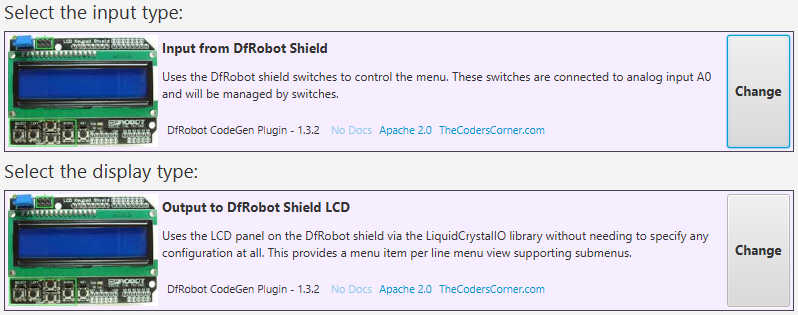
First, ensure your menu structure is saved and then choose Code -> Generate Code from the menu. Once the code generation dialog appears, to the right of the current input type will be a button named "Change". Click this button and choose one of the following new drivers by clicking select on the right.
Controlling the menu with buttons
DfRobot plugin confiugures everything automatically, so there's no need to do anything other than choose the two options above during code generation. So, ensure your menu structure is saved and then choose Code -> Generate Code from the menu. Once the code generation dialog appears, to the right of the current display type will be a button named "Change". Click this button and choose the following new drivers by clicking select on the right.
These may be of interest
- Similar - Dark mode themes for all display sizes.
- Similar - Monochrome themes for rendering menus onto OLED/5110.
- Similar - Color themes for all display sizes.
- Similar - TcMenu - Rendering menus to LCD using LiquidCrystalIO library
- Similar - TcMenu - Touch pad sensor input plugin

Want to let us know about something?
- If this is a library documentation page, raise a PR on the documentation site.
- Open a discussion on the Community channels
- Contact us for problems or improvements on the main site.
Table of contents
Supporting us
We maintain several popular embedded projects and work hard to make them even better. If you're looking for commercial services, please do consider us.
Alternatively, you can buy us a coffee to say thanks.
Sharing links
Learn about TcMenu
We build and maintain an embedded menu designer and framework that works on many platforms.