Summary
TcMenu Turbo is a new version of tcMenu that is designed to be more efficient and easier to use. At the core of this improvement is Menu Designer Turbo, a new web based application that allows you to create menus in a simple and intuitive way.
With Turbo, we recommend that you move your menu project to generate plugin code into a single file, and use the new menu builder support. With these two together, it reduces the need for round trip development significantly. Most pages have links to the documentation that's needed to understand how to use the feature. This guide should get you started enough to navigate the new application..
In phase 1, we support creating a new project, and regenerating an existing project, round trip is not yet supported.
Getting started
Visit TcMenu Designer Turbo to get started with the web based UI.
Getting started with a new project
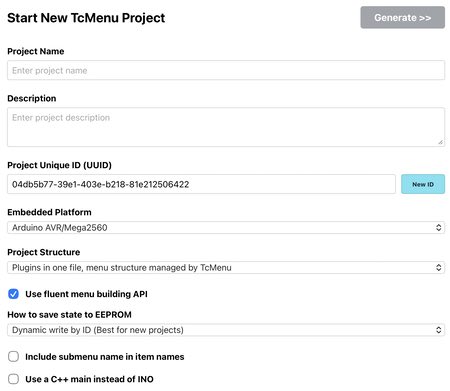
Simply click the "Start Project" link on the top header, and the following dialog will appear:
Description of each field:
- Project Name - this is the name of the project, the directory for the project will be this with only alphanumeric characters and underscores.
- Project Description - this is a short description of the project,
- Project UUID - All TcMenu projects have a unique UUID, this allows for easy identification when using remote services.
- Embedded Platform - Choose the platform closest to what you are using (see build options below).
- Project Structure - Choose the structure that best suits your project (See build options below).
- Use Fluent Builder - We recommend that you use the Fluent Builder, the menu code is far more readable.
- How to save to EEPROM - TcMenu can automatically save to a number of different EEPROM models. This chooses how.
- Include submenu names in item names - this recursively names your item, for example menuSettingsItem1.
- Use a C++ main class - if you're using platformio or similar powerful IDE, you may prefer a C++ main file.
Once the above are configured as you require, simple click the "Generate" button.
Getting started with an existing project
Menu designer Turbo is designed to be used with existing projects, any project from the desktop version of tcMenu can be used. It should even be compatible to load projects into desktop from the web version.
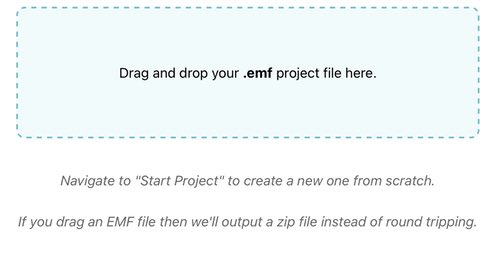
If you already have an EMF file that you want to run through the new designer again, go to the Menu Edit tab on the top header, and drag the EMF file into the box shown below to load it. See the image below:
Editing a loaded project
Once you've loaded a project, add/remove items, navigate menu items and even add additional IO expanders to the project, ready for code generation. Below is a screenshot of the menu editor:
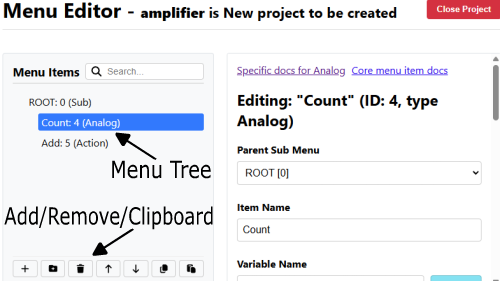
From here you select items in the menu tree, each item that you select shows up in the editor on the right side, where you can change the settings for it. There's a documentation page for each item type, and that's linked at the top of the page.
You can add items to the menu by clicking the "+" button at the bottom of the tree, you can also add a template from there now too (a template is a whole menu structure instead of a single item). You can also move items around and copy/paste them too from the same toolbar.
Adding IO expanders
You can add and manage IO expanders in the project from the IO expanders tab. An IO expander is a device that handles additional GPIO's that are often on I2C. Any IO expanders you add in this tab will be available during code generation.
Documentation around adding and using Io Expanders
Code Generation
Once you've finished editing your menu, you can generate it by selecting "Generate Code" from the header menu.
The generated code is based on the selected platform, and you can at this point choose the input, display and remote technologies that you want to use. Each subsystem such as input, has a plugin configuration that allows you to select the plugin to use, and to configure it as well.
To select a plugin, click the "Change" button for the appropriate subsystem. See below:
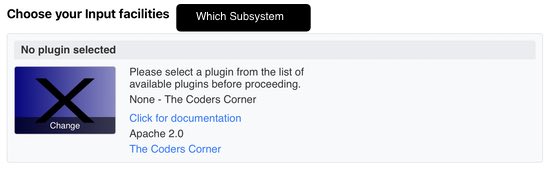
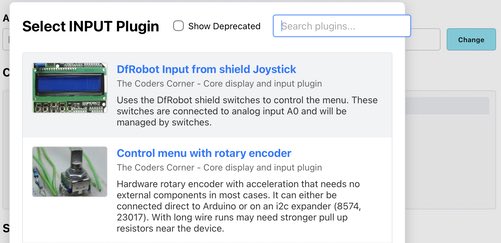
You can select a plugin from the list that's provided. The list will contain plugins that are compatible with the selected platform and subsystem. There is also a search box that allows you to filter the list. See below:
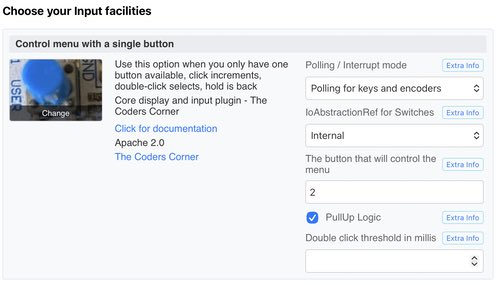
Once you've selected a plugin, the configuration details for it will appear on the right side, and you can configure it as required. Each plugin comes with documentation that describes how to configure it.
Once you've configured all the plugins, you can select an EEPROM if you need to save the menu to EEPROM, or have used any other EEPROM features. This is done at the top of the page in the EEPROM section.
Now press the "Generate" button to generate the code. A zip file will be downloaded to your browser and you'll see the logs in the code generation window.
Going further
You can now expand the zip and move over to your IDE. You can use this project in Arduino IDE. Although, we tend to use CLion with PlatformIO, but any IDE that supports C++ and PlatformIO should work. As long as all the plugins and pins were correctly defined, the project should compile and run.
These may be of interest
- Similar - Embed Control developer version for controlling and monitoring Arduino
- Similar - Control embedded menu application from browser - embedCONTROL.js
- Similar - Checking if 7segment display is common anode or cathode
- Similar - Arduino multiple digit, 7 segment display tutorial
- Similar - Arduino single 7 segment analog measurement example

Table of contents
Supporting us
We maintain several popular embedded projects and work hard to make them even better. If you're looking for commercial services, please do consider us.
Alternatively, you can buy us a coffee to say thanks.
Sharing links
Learn about TcMenu
Learn about our rapid development framework TcMenu.